


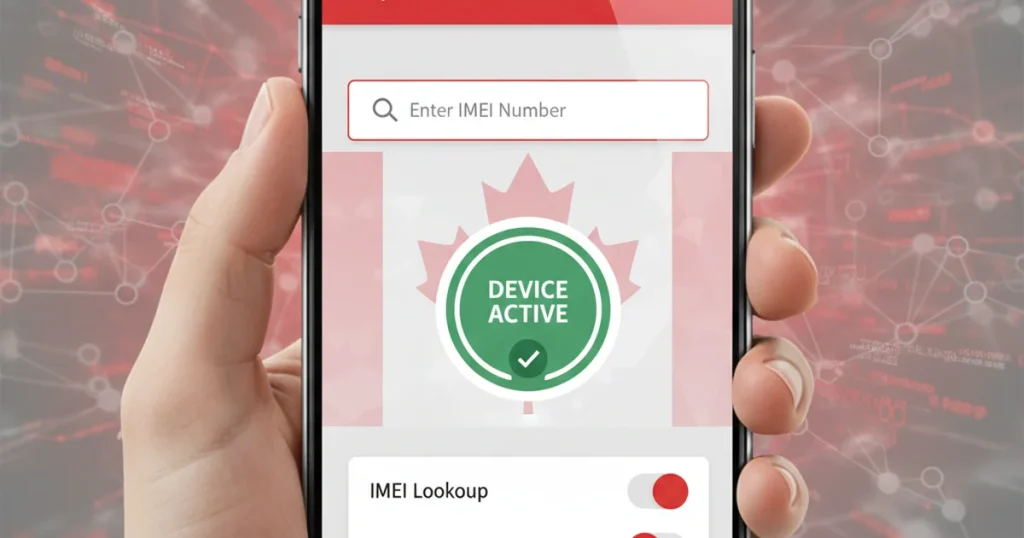
Buying a used phone in Canada without checking its IMEI first is like buying a used car without running the VIN. You might get lucky — or you might end up with something that’s stolen, blacklisted, and completely unusable on any Canadian carrier.
DeviceCheck.ca is the tool that removes the guesswork. It’s Canada’s official device verification platform, backed by the country’s major wireless carriers, and it gives you an instant, real-time answer on whether any phone is clean, blocked, or carrier-restricted. Best of all, it’s completely free.
Whether you’re shopping for a second-hand iPhone, reporting a stolen Samsung Galaxy, or just trying to understand what blacklist status means before you hand over your money — this guide walks you through everything from start to finish.
What Is DeviceCheck.ca?
DeviceCheck.ca is Canada’s national IMEI lookup service, operated collaboratively by the country’s largest wireless carriers including Bell, Rogers, and Telus. When a phone is reported lost, stolen, or tied to an unpaid device contract, the carrier enters its IMEI number into a shared national database. DeviceCheck.ca queries that database in real time, giving buyers, sellers, and phone owners immediate visibility into a device’s true status.
The system exists because the used phone market — while generally legitimate — has a meaningful fraud problem. Stolen phones get wiped, reset, and relisted online constantly. Without a centralized blacklist check, there’s no easy way for a buyer to know whether the device they’re holding was reported stolen an hour ago or has a blocked IMEI that will prevent it from ever connecting to a Canadian network.
DeviceCheck.ca closes that gap. It’s not a third-party service with uncertain data. It pulls directly from carrier records, meaning the information is as current and authoritative as it gets.
It’s worth noting that DeviceCheck.ca is specifically scoped to Canada. It checks Canadian carrier databases operated under the Canadian Wireless Telecommunications Association (CWTA) framework. If you’re verifying a phone that originated from another country, you’d need to use that country’s system — for example, the CTIA Stolen Phone Checker for the US, or CEIR for India. Our Canada IMEI blacklist and verification guide explains how the national system is structured and how it connects to broader global blacklist networks.
What Information Does DeviceCheck.ca Actually Check?
When you enter an IMEI into DeviceCheck.ca, the system checks three primary things:
Blacklist status — Is the IMEI currently flagged as lost, stolen, or associated with fraud? This is the most critical check. A blacklisted IMEI means the device cannot be activated on any participating Canadian carrier, regardless of which SIM card is inserted or whether the phone has been factory reset.
Carrier lock status — Is the phone locked to a specific carrier? A carrier-locked device isn’t blacklisted, but it will only work with that one carrier’s SIM until an official unlock is processed. This affects your flexibility as a buyer.
Activation eligibility — Can the device currently be activated on a Canadian network? This combines the above two factors into a practical yes or no answer for buyers and carriers.
What DeviceCheck.ca does not provide is real-time GPS location data, owner identity, or detailed account history. It’s a device status tool, not a tracking service. Understanding the difference between checking a device’s blacklist status and actual IMEI-based tracking is important — they’re fundamentally different systems with different access requirements.
How to Find Your IMEI Before Using DeviceCheck.ca
You need the device’s IMEI number before you can run any check. Here are the fastest ways to find it depending on the device and situation.
On Any Phone — The Universal Method
Dial *#06# from the phone’s dial pad. The IMEI appears on screen immediately. No menu navigation required, and it works on virtually every mobile device regardless of brand or operating system.
On iPhone
Go to Settings → General → About and scroll down to find the IMEI field. On iPhones running iOS 16 and later, you can tap and hold the IMEI to copy it directly. You can also find it in iCloud.com → Find My → your device — which is particularly useful if the phone is already lost.
On Android
Open Settings → About Phone → Status (the exact path varies slightly by manufacturer, but “About Phone” is the starting point on all Android devices). The IMEI is listed under device information. On Samsung Galaxy phones, it’s under Settings → About Phone → Status Information → IMEI Information.
On the Physical Device and Packaging
The IMEI is often printed on the SIM card tray, the back of the device (on older models), and on the original retail box. If you’re buying a used phone in person, ask the seller to show you the box and compare the IMEI on the box with the one the phone reports in its settings. They must match. If they don’t, something is wrong.
For a complete breakdown of every method across all major phone brands — including how to retrieve your IMEI if you no longer have the phone — see our guide on how to find your IMEI without the phone.
Step-by-Step: How to Use DeviceCheck.ca
Once you have the IMEI, the actual check takes under a minute.
Step 1 — Open DeviceCheck.ca
Go to https://www.devicecheck.ca in any web browser on any device. The site is mobile-friendly and works on phones, tablets, and desktops without any account creation or login.
Step 2 — Enter the IMEI Number
You’ll see a search field prominently displayed on the page. Type or paste the 15-digit IMEI number exactly as it appears. A few important things to get right:
- The IMEI must be exactly 15 digits long
- Enter numbers only — no spaces, dashes, or letters
- Double-check that you haven’t accidentally missed a digit or added an extra one
If you’re checking a dual-SIM phone, it will have two IMEIs. Check both. A phone can theoretically have a clean IMEI 1 and a blocked IMEI 2 — both matter for full network functionality.
Step 3 — Submit the Query
Click the search or check button. The system queries the carrier database in real time. Results typically appear within two to five seconds.
Step 4 — Read and Interpret Your Results
The result will fall into one of several categories, each with specific implications. The next section covers exactly what each status means and what to do about it.
Understanding DeviceCheck.ca Results: What Every Status Means
This is where most guides stop being helpful. Getting a result is easy — knowing what to do with it is what actually protects you.
✅ Active / Clean
The device is not currently reported as lost, stolen, or tied to an unpaid contract. It can be activated on any Canadian carrier. This is the result you want to see before completing any used phone purchase.
What to do: Proceed with the purchase, but also complete the other verification steps in the buyer’s checklist below. A clean IMEI is necessary but not sufficient on its own.
❌ Blocked
The device’s IMEI has been flagged in the national database. It cannot be activated on Bell, Rogers, Telus, or any participating Canadian carrier. Factory resetting the phone does not remove this block — the blacklist operates at the network level, not the device level.
What to do: Do not purchase this device. If a seller is offering a blocked phone, either they don’t know it’s blocked (in which case they have a problem to sort out with their carrier) or they do know — which is a much more serious issue. Walk away.
🔒 Carrier-Locked
The device is restricted to one specific carrier but is not blacklisted. This is common with phones purchased on installment plans — they’re locked to the selling carrier until the plan is paid off and an unlock is requested.
What to do: A carrier-locked phone isn’t inherently a bad buy, but you need to use it with that carrier or request an official unlock before switching. Official unlocks from Canadian carriers are generally available free of charge once the device is fully paid off. Confirm with the seller which carrier the device is locked to before buying.
⚠️ Unable to Verify
The system couldn’t return a definitive result. This happens for a few reasons: the IMEI was entered incorrectly, there’s a temporary issue with the database query, or the device is brand new and hasn’t been registered in the carrier system yet.
What to do: Double-check the IMEI for typos and try again. If the issue persists after 24 hours, contact the carrier directly to run a manual check. Never complete a used phone purchase on the basis of an “Unable to Verify” result alone.
The Complete Buyer’s Checklist for Used Phones in Canada
DeviceCheck.ca is one piece of the puzzle. Buying a used phone safely in Canada requires a few more steps — all of them quick, all of them worth doing.
Before you meet the seller:
- Ask for the IMEI over message or email and run it through DeviceCheck.ca before committing to anything
- If the seller refuses to share the IMEI in advance, treat that as a red flag
When you have the phone in hand:
- Dial *#06# to verify the on-screen IMEI matches what the seller provided and what’s printed on the box
- Power the device on completely and confirm it connects to a carrier network
- Check that the IMEI on the SIM tray matches the settings IMEI — a mismatch can indicate the device has been tampered with
iPhone-specific checks:
- Go to Settings → [Your Name] — if someone else’s Apple ID is still signed in, the phone has Activation Lock and you cannot use it without that person’s credentials
- Ask the seller to sign out of their Apple ID before the handoff
Android-specific checks:
- Go to Settings → Accounts → Google and confirm no account is linked, or ask the seller to remove their Google account before the sale
- Factory Reset Protection (FRP) on Android ties the device to the previous owner’s Google account — if they didn’t remove it, you could be locked out after a reset
Document everything:
- Get a written receipt with the seller’s name, date, device description, IMEI, and agreed price
- This documentation is valuable if any issue surfaces after the transaction
Understanding how IMEI blacklisting works as a system — including how quickly a newly reported stolen phone gets blocked — gives important context for why checking before purchase is so much better than checking after.
How to Report a Stolen or Lost Phone in Canada
If you’re on the other side of this equation — your phone has been stolen or lost — here’s how to get it blocked quickly so no one can use it on a Canadian network.
Contact Your Carrier Immediately
Speed matters. The faster you report, the faster the block propagates across Canadian carrier networks through DeviceCheck.ca. Here are the primary contact numbers:
- Bell: 1-800-363-2355
- Rogers: 1-888-764-3771
- Telus: 1-866-558-2368
- Freedom Mobile: 1-844-339-3227
- Shaw Mobile: 1-855-942-7429
When you call, have your account information ready. You don’t necessarily need your IMEI available at the moment of the call — your carrier can pull it from your account — but having it speeds up the process considerably. If you stored your IMEI somewhere safe before losing the phone, this is where that preparation pays off.
File a Police Report
If your phone was stolen (as opposed to lost), filing a police report creates an official record. Many insurance claims require a police report number, and it provides documented evidence if you need to pursue the matter further. Non-emergency lines are appropriate for most phone theft reports.
Secure Your Accounts
Once the carrier block is in place, immediately:
- Change your passwords for email, banking, and social media from another device
- Enable two-factor authentication on any accounts that were accessible from your phone
- Use Apple Find My or Google Find My Device to remotely lock or erase the phone
Our guide on IMEI security and privacy best practices covers the full scope of what to do after a phone is stolen, including protecting your accounts and monitoring for identity fraud.
How DeviceCheck.ca Fits Into Canada’s Broader IMEI System
DeviceCheck.ca sits at the consumer-facing end of a much larger infrastructure. When a carrier adds an IMEI to the Canadian blacklist, that data doesn’t stay siloed. Through agreements under the GSMA’s global Equipment Identity Register (EIR) framework, blacklist data shared among Canadian carriers can propagate internationally, and vice versa.
This means a phone stolen in Toronto and blacklisted through Rogers can potentially be flagged in the UK or Australia if those countries’ carrier systems participate in GSMA cross-border data sharing. Stolen phone markets that rely on moving devices across borders are increasingly disrupted by this international synchronization.
It also means that if you’re in Canada and buying an imported phone from the US, UK, or another country, you should check that country’s blacklist system in addition to DeviceCheck.ca — a clean result in Canada doesn’t guarantee the device is clean in its country of origin. Our guide to online IMEI checking tools covers the major international options side by side.
Common Mistakes People Make With DeviceCheck.ca
A few things to avoid when using the service:
Checking after the purchase instead of before. Once money has changed hands, your leverage to get it back is limited. The check takes 30 seconds — always do it first.
Accepting a screenshot as proof. Some sellers will offer you a screenshot of a DeviceCheck.ca result instead of letting you run the check yourself. Screenshots can be edited. Always run the check yourself, in real time, with the device in hand.
Only checking one of two IMEIs. As noted above, dual-SIM phones have two IMEIs. Both need to come back clean.
Assuming “carrier-locked” means “blacklisted.” These are different statuses. Carrier-locked phones are restricted but usable — with the right SIM. Blacklisted phones are blocked entirely. Don’t conflate them.
Not verifying the physical IMEI matches the digital one. The IMEI printed on the box and SIM tray should match exactly what the phone reports via *#06# and in Settings. A discrepancy suggests the device may have been tampered with or the original phone may have been swapped out for a different unit.
FAQ Schema — People Also Ask
What is DeviceCheck.ca and who runs it?
DeviceCheck.ca is Canada’s official IMEI lookup service, operated by the Canadian Wireless Telecommunications Association (CWTA) on behalf of major Canadian carriers including Bell, Rogers, and Telus. It allows anyone to check whether a mobile device has been reported stolen, lost, or blocked on Canadian networks.
Is DeviceCheck.ca free to use?
Yes, DeviceCheck.ca is completely free. There is no account required, no login, and no fee. Anyone can check any device’s IMEI at any time through the official website at devicecheck.ca.
What does “blocked” mean on DeviceCheck.ca?
A “blocked” result means the device’s IMEI has been flagged in the Canadian carrier blacklist database. The phone has been reported stolen, lost, or tied to an unpaid contract. A blocked device cannot be activated on any participating Canadian carrier, regardless of whether it has been factory reset or unlocked.
Can I use a phone that shows as carrier-locked on DeviceCheck.ca?
Yes, a carrier-locked phone is not blacklisted. It can still be used — but only with the specific carrier it’s locked to. To use it with another carrier, you’ll need an official carrier unlock, which Canadian carriers are required to provide once a device is fully paid off.
How long does it take for a stolen phone to show as blocked on DeviceCheck.ca?
Typically within 2 to 24 hours after the original owner reports it to their carrier. The carrier adds the IMEI to the national database, and DeviceCheck.ca reflects that update as it propagates. Reporting as quickly as possible maximizes the effectiveness of the block.
Can a blocked phone be unblocked on DeviceCheck.ca?
Yes, but only through the carrier that placed the block, and only by the original account holder with verified documentation. Third-party services claiming to remove blacklist blocks for a fee are scams. There is no legitimate consumer workaround for a carrier-placed IMEI block.
Does DeviceCheck.ca check phones from other countries?
DeviceCheck.ca only queries Canadian carrier databases. If you’re buying a phone that originated from another country — the US, UK, India, etc. — you should also check that country’s official blacklist system in addition to DeviceCheck.ca.
What should I do if DeviceCheck.ca shows “Unable to Verify”?
Double-check that you entered the correct 15-digit IMEI with no typos. Wait 24 hours and try again. If the issue persists, contact the carrier directly for a manual check. Do not purchase a used phone based on an unresolved “Unable to Verify” result.