
Now I have a thorough understanding of the site’s existing pages, internal link structure, tone, and content style. Let me write the full article.
📋 SEO Metadata
Meta Title: How to Find IMEI on Google Pixel 9 & 8 Phones (2026) — All Methods
Meta Description: Learn how to find the IMEI on your Google Pixel 9, Pixel 9 Pro, Pixel 8, or Pixel 8a — using Settings, dial code *#06#, the physical tray, or your Google Account. Step-by-step guide for 2026.
Slug: /blogs/how-to-find-imei-google-pixel-9-8-phones/
Focus Keyword: how to find IMEI on Google Pixel
How to Find IMEI on Google Pixel 9 & 8 Phones (2026)
Finding the IMEI on a Google Pixel phone is easier than most people expect — and knowing it can save you a huge headache if your phone is ever lost, stolen, or needs a warranty claim. Whether you own a Pixel 9 Pro, Pixel 9, Pixel 8a, or Pixel 8, the steps are quick, and there’s more than one way to get there.
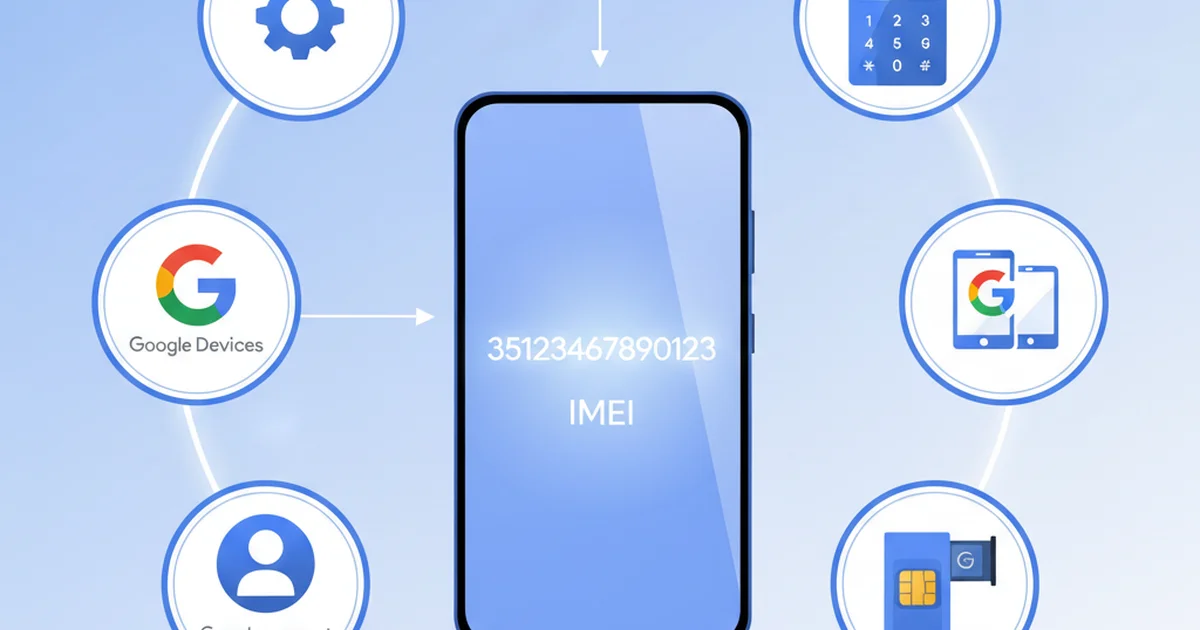
This guide walks you through every reliable method: using your phone’s Settings, dialing the universal IMEI code, checking the physical SIM tray and box, and even retrieving your IMEI remotely from your Google Account if your phone is already gone. By the end, you’ll also know exactly what to do with your IMEI once you have it.
What Is an IMEI Number and Why Does It Matter?
Before diving into the steps, it helps to understand what you’re actually looking for. IMEI stands for International Mobile Equipment Identity. It’s a unique 15-digit number permanently assigned to your phone’s hardware — think of it as your device’s fingerprint.
Carriers use your IMEI to identify your phone on their network. Manufacturers use it to verify warranty eligibility. Law enforcement and official blacklist systems use it to block stolen phones from ever connecting to any network again.
For Google Pixel owners specifically, the IMEI matters in several practical situations:
- Buying or selling a used Pixel — Running an IMEI check confirms the phone isn’t stolen or blacklisted before money changes hands.
- Filing a stolen phone report — Without the IMEI, you can’t ask your carrier to block the device.
- Insurance and warranty claims — Both typically require the IMEI to process your request.
- Carrier unlocking — If you want to switch networks, your IMEI is part of the unlock request.
If you’re not sure what the IMEI actually is or how the broader system works, the complete IMEI basics guide is a good place to start.
Method 1: Find IMEI via Settings (Most Reliable)
This is the most dependable method and the one Google officially recommends. It works on every Pixel model — Pixel 8, 8a, 8 Pro, 9, 9 Pro, 9 Pro XL, and 9 Pro Fold — running Android 12 or later.
Step-by-Step Instructions
Step 1 — Open the Settings app. Swipe down from the top of your screen and tap the gear icon, or find the Settings app in your app drawer.
Step 2 — Scroll to the bottom and tap “About Phone.” On Pixel phones, this is always at the very bottom of the main Settings menu.
Step 3 — Tap “Device identifiers.” On Pixel 9 and Pixel 8 series phones, Google separates device identification into its own dedicated submenu. Tap “Device identifiers” to open it.
Step 4 — Locate the IMEI field. You’ll see one or two IMEI numbers listed:
- IMEI — This appears on single-SIM or eSIM-only configurations.
- IMEI (SIM slot 1) and IMEI (SIM slot 2) — These appear if your Pixel has dual SIM capability.
Step 5 — Save it. Take a screenshot or write it down somewhere safe, like a notes app, password manager, or piece of paper stored at home.
Why This Path Is Different on Pixel vs. Other Android Phones
If you’ve used a Samsung, Xiaomi, or OnePlus phone before, you may have noticed those brands nest the IMEI under “About Phone → Status.” Google Pixel takes a slightly different path, placing it directly under “Device identifiers” — a cleaner layout, but one that trips up users switching from other Android brands. The full Android IMEI guide covers the exact path for every major Android manufacturer if you’re ever helping someone with a different device.
Method 2: Dial *#06# (Fastest Method)
If you want your IMEI in under 10 seconds, this is the way. The code *#06# is a universal USSD command built into the GSM standard, which means it works on every mobile phone in the world — Android, iOS, and feature phones alike.
How to Use It on a Pixel
Step 1 — Open the Phone app. Tap the green phone icon on your home screen or app drawer. Make sure you’re in the native Google Phone app, not a third-party dialer.
Step 2 — Open the dial pad. Tap the keypad icon at the bottom of the screen.
Step 3 — Type *#06#. Enter the asterisk, then the hash, then zero, six, then another hash.
Step 4 — Tap the call button. The IMEI popup appears instantly on screen — no call is made, no network connection needed.
On dual-SIM Pixel phones, the popup will show both IMEI 1 and IMEI 2 simultaneously.
A Note About Reliability
The *#06# method queries your phone’s baseband processor directly, bypassing the operating system entirely. This means it works even if your SIM card is removed or you have no signal. It’s the quickest check you can do, and the result is always accurate.
Method 3: Check the SIM Tray
Google Pixel phones have the IMEI printed on the SIM tray itself — the small metal card that holds your nano-SIM. This is particularly useful if your phone’s screen is cracked or unresponsive, or if you simply want a physical backup record.
How to Find the SIM Tray on Pixel 9 and Pixel 8 Series
The SIM tray on both the Pixel 9 series and Pixel 8 series is located on the left side of the phone, near the bottom edge.
Step 1 — Locate the ejection pinhole. Look for a small round hole on the left side of the phone. It’s subtle — look carefully.
Step 2 — Insert the SIM ejection pin. Use the pin that came in your Pixel’s box. If you’ve lost it, a straightened paperclip works — but apply gentle, straight pressure only.
Step 3 — Eject the tray. Push the pin straight into the hole until the tray pops out slightly, then pull it the rest of the way out.
Step 4 — Read the IMEI. Look at the metal tray surface. The IMEI (and IMEI 2 for dual-SIM models) is laser-engraved or printed in small text directly on the tray.
Pixel 9 Pro Fold — Special Note
The Pixel 9 Pro Fold is slightly thicker than other Pixel models due to its folding design. The SIM tray is still on the left side, but the ejection pinhole sits slightly higher than on flat-glass Pixels. If you’re struggling to find it, run your fingernail along the left edge — the tray seam is usually the giveaway.
Method 4: Check the Original Box
If you still have the retail box your Pixel came in, you’re in luck. Google prints the IMEI on a specifications label on the back or bottom of every Pixel box. This label also includes the model number, storage capacity, and serial number.
What to Look For
The IMEI is usually printed beneath the main barcode or QR code on the back of the box, labeled clearly as “IMEI” or “IMEI1” and “IMEI2” for dual-SIM models.
Pro tip: Take a photo of this label right after you open a new phone and store it in Google Photos or your cloud storage. If the phone is ever lost or stolen, you’ll have the IMEI ready within seconds — no scrambling required.
Method 5: Retrieve IMEI from Your Google Account (Works Even Without the Phone)
This is the method most Pixel owners don’t know about — and it’s arguably the most important one to understand. If your Pixel is already lost or stolen, you can still retrieve its IMEI remotely through your Google Account, as long as the phone was signed in before it disappeared.
Google stores device identifiers — including the IMEI — for every Android phone that has ever signed in to your account. This data persists even if the phone is offline, powered off, or factory reset.
How to Get It via Find My Device
Step 1 — On any computer or spare phone, go to findmydevice.google.com
Step 2 — Sign in with the Google account that was active on your lost Pixel.
Step 3 — Select your Pixel from the device list on the left.
Step 4 — Look for the device details panel — the IMEI is listed under device specifications or device identification.
How to Get It via Your Google Account Settings
Step 1 — Visit myaccount.google.com
Step 2 — Click Security, then scroll to Your devices and click Manage all devices.
Step 3 — Select your Pixel from the list. The IMEI should appear in the device information panel.
This method works hand-in-hand with the broader strategy covered in the Google Account IMEI retrieval guide, which explains what to do if your IMEI isn’t showing up in these screens. And if you need to go further — checking carrier records, purchase receipts, or email confirmations — the complete guide to finding IMEI without the phone walks through every fallback option.
Pixel 9 Series vs. Pixel 8 Series — Are There Any Differences?
From an IMEI-finding perspective, the process is essentially identical across the Pixel 8 and Pixel 9 lineup. The Settings path (About Phone → Device identifiers) is consistent across both generations, and the *#06# dial code works on all of them.
One practical difference worth noting: the Pixel 9 Pro Fold supports dual SIM (physical SIM + eSIM), while the standard Pixel 9 and Pixel 8 can also use dual SIM depending on configuration. Dual-SIM models will always show two IMEI numbers — IMEI 1 for the primary slot and IMEI 2 for the secondary. When checking blacklist status or reporting a theft, you may need to supply both.
Here’s a quick reference for the models this guide covers:
| Model | Dual SIM Support | IMEI Count | SIM Tray Location |
|---|---|---|---|
| Pixel 9 Pro Fold | Yes (nano-SIM + eSIM) | 2 | Left side |
| Pixel 9 Pro XL | Yes (nano-SIM + eSIM) | 2 | Left side |
| Pixel 9 Pro | Yes (nano-SIM + eSIM) | 2 | Left side |
| Pixel 9 | Yes (nano-SIM + eSIM) | 2 | Left side |
| Pixel 8 Pro | Yes (nano-SIM + eSIM) | 2 | Left side |
| Pixel 8 | Yes (nano-SIM + eSIM) | 2 | Left side |
| Pixel 8a | Yes (nano-SIM + eSIM) | 2 | Left side |
For all models above, IMEI 1 corresponds to the nano-SIM slot and IMEI 2 to the eSIM. If your Pixel is configured as eSIM-only (no physical SIM inserted), only IMEI 1 will be active on a live network, but IMEI 2 still exists in the hardware.
What to Do With Your IMEI Once You Have It
Finding your IMEI is step one. Here’s what smart Pixel owners do next.
Save It Somewhere Safe Right Now
Don’t wait for an emergency. Write your IMEI in a password manager, email it to yourself, store it in a secure notes app, or photograph the box label and back it up to Google Photos. The entire purpose of knowing your IMEI in advance is so you can act fast if something goes wrong.
Run a Blacklist Check (Especially on Used Phones)
If you bought a used Pixel 9 or Pixel 8, one of the first things to do is verify its IMEI hasn’t been reported stolen or blacklisted. A blacklisted phone can’t connect to any carrier network, which makes it essentially useless as a phone. You can run this check through your country’s official IMEI checker. For US-based buyers, the USA IMEI check and tracking guide explains how to use the CTIA’s stolen device tool and what the results mean.
Report and Block a Stolen Pixel Immediately
If your Pixel is stolen, time is your enemy. The faster you block the IMEI, the less useful the device becomes to a thief. The moment you confirm the phone is gone:
- Contact your carrier and report the theft — request an immediate IMEI block.
- File a police report and get a case/incident number.
- Submit the IMEI to your country’s national blacklist authority.
- Use Google’s Find My Device to remotely lock or wipe the phone.
The complete stolen phone blocking guide covers all of these steps in detail, including carrier-specific instructions and how blacklisting works internationally.
Verify the IMEI Matches Across Sources
If you’re buying a used Pixel from a private seller, compare the IMEI shown in Settings with the IMEI on the box or SIM tray. They must match exactly. A mismatch is a serious red flag — it can indicate the motherboard was swapped, the phone is counterfeit, or the IMEI was altered to hide a stolen device’s identity. If anything doesn’t add up, walk away from the sale.
Common Questions and Troubleshooting
“I can’t find ‘Device identifiers’ in Settings.” This usually means you’re on an older version of Android. On Pixel phones running Android 11 or earlier, the IMEI is under Settings → About Phone → IMEI information, or sometimes directly inside the “About Phone” screen without a submenu. Use the *#06# method if you’re not sure which path applies.
“My Pixel shows two IMEIs — which one do I use?” For most purposes — blocking a stolen phone, warranty claims, carrier registration — use IMEI 1. If you’re running two active SIM profiles, give both IMEIs to your carrier so both are blocked.
“The IMEI on the box doesn’t match my Settings.” This is uncommon on a factory-new Pixel and worth investigating. Google-refurbished Pixels (sold through the Google Store) sometimes have replacement hardware, so slight documentation differences can occur. Contact Google Support with both IMEIs for clarification.
“I can’t access my phone at all — it’s broken.” Check the SIM tray, the original box, or your Google Account. All three options are covered above and none require the phone to be functional or powered on.
FAQ Schema
Q1: How do I find the IMEI on a Google Pixel 9? Open Settings, scroll to the bottom, tap “About Phone,” then tap “Device identifiers.” Your IMEI (and IMEI 2 for dual-SIM) is listed there. Alternatively, open the Phone app, dial *#06#, and tap call — the IMEI appears on screen instantly.
Q2: Where is the IMEI on a Pixel 8a? The Pixel 8a stores the IMEI under Settings → About Phone → Device identifiers. You can also dial *#06# in the Phone app for an instant display, or check the SIM tray on the left side of the device for a physically printed version.
Q3: Does a Google Pixel have two IMEI numbers? Yes. All Pixel 8 and Pixel 9 series phones support dual SIM (nano-SIM + eSIM), so they have two IMEI numbers — IMEI 1 for the physical SIM slot and IMEI 2 for the eSIM. Both appear in Settings under Device identifiers and when you dial *#06#.
Q4: Can I find my Pixel’s IMEI without the phone? Yes. If your Pixel was signed into a Google account, visit myaccount.google.com → Security → Manage all devices, or go to findmydevice.google.com and select your device. The IMEI is stored in your account. You can also check the original box or contact your carrier.
Q5: What should I do with my Pixel’s IMEI if it’s stolen? Contact your carrier immediately and provide the IMEI to request a network block. File a police report and get a case number. Submit both to your country’s national blacklist system. Use Google’s Find My Device to remotely lock or wipe the handset.
Q6: Is the IMEI the same as the serial number on a Pixel? No. The IMEI is a 15-digit number used by mobile networks to identify your phone globally. The serial number is a separate identifier used by Google and retailers for manufacturing and warranty tracking. Both appear under Settings → About Phone on your Pixel.
Q7: Can I check if a used Pixel is blacklisted using the IMEI? Yes. Ask the seller for the IMEI before buying, then run it through your country’s official blacklist checker. In the US, use the CTIA’s tool or your carrier’s IMEI check service. A blacklisted Pixel cannot connect to any carrier network, making it worthless as a phone.