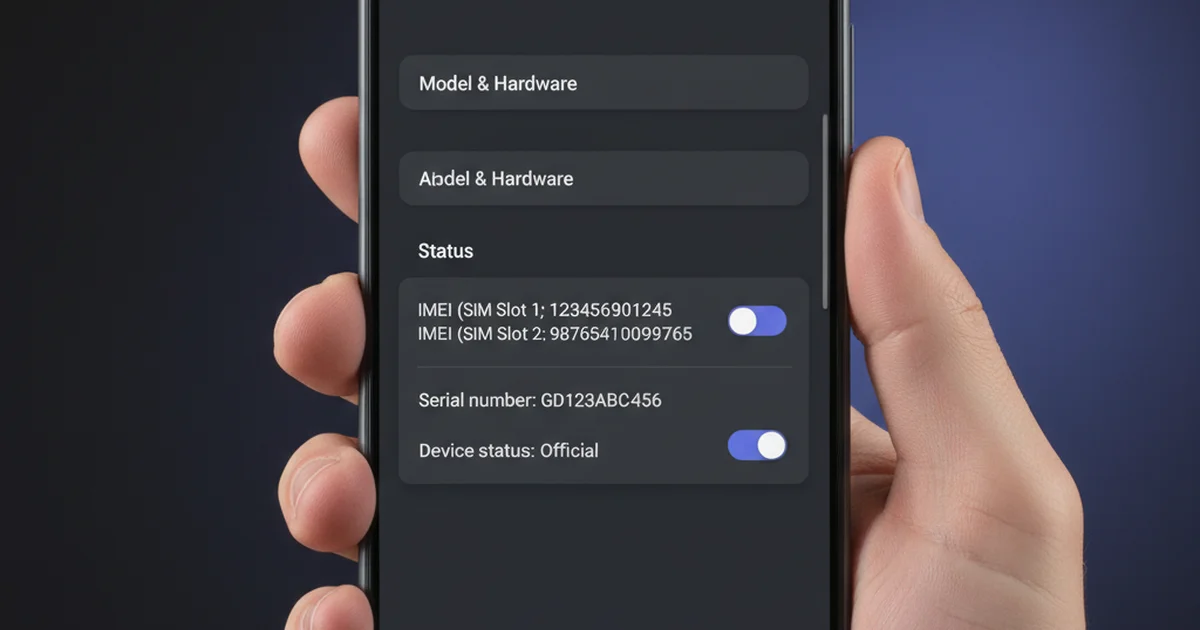

Your Android phone’s IMEI number is one of the most important pieces of information about your device. Whether you’re buying a second-hand phone, filing an insurance claim, or dealing with a stolen device, knowing how to find your IMEI is essential for every Android user.
In this comprehensive guide, I’ll show you 4 proven methods to find your IMEI on any Android phone — from settings to hidden dial codes. Each method works on Samsung Galaxy, Google Pixel, Xiaomi, OnePlus, Motorola, Redmi, POCO, and virtually every other Android brand available in 2026.

Table of Contents
- Method 1: Android Settings Menu (Most Reliable)
- Method 2: Universal Dial Code *#06# (Fastest)
- Method 3: Physical IMEI Labels (SIM Tray & Box)
- Method 4: Third-Party Apps & Tools
- Why Your IMEI Matters
- Troubleshooting & Common Issues
- FAQs
Method 1: Find IMEI in Android Settings Menu (Most Reliable)
The Settings menu is the official, manufacturer-approved way to view your IMEI. This method works on every Android phone — old and new — and is completely safe. You’ll see both IMEI1 and IMEI2 if your phone supports dual SIM technology.
Complete Step-by-Step Instructions:
Step 1: Unlock Your Phone — Enter your PIN, pattern, or biometric to access the home screen.
Step 2: Open the Settings App — Tap the gear icon (⚙️) on your home screen. If you don’t see it, open the app drawer and search for “Settings.”
Step 3: Navigate to “About Phone” — Scroll all the way down in Settings and look for “About Phone,” “About Device,” or “About This Phone” (the exact wording varies by manufacturer).
Step 4: Find the IMEI Field — Once in “About Phone,” look for one of these field names:
- “IMEI”
- “IMEI 1” and “IMEI 2”
- “Device ID”
- “Status” (tap this, then look for IMEI)
Step 5: Save Your IMEI — The IMEI is a 15-digit number. Write it down in a safe place, take a screenshot, or memorize it. Your phone will also show the model name, Android version, and build number nearby.
Why This Method Works: When you manufacture a phone, the IMEI is permanently burned into the device’s baseband processor. This is the chip that handles all SIM communication. The Android operating system simply reads this value from the hardware and displays it in Settings. This is why the IMEI in Settings is always the definitive, official identifier for your device.
Device-Specific Paths (For Your Exact Model):
| Manufacturer | Model Series | Path to IMEI |
|---|---|---|
| Samsung | Galaxy S25, S24, A series, all models | Settings → About Phone → Status |
| Pixel 9, 8, 7, all models | Settings → About Phone → Device identification → IMEI | |
| Xiaomi / Redmi / POCO | All models | Settings → About phone → All specs |
| OnePlus | OnePlus 12, 11, all models | Settings → About phone → Regulatory information |
| Motorola / Moto | All models | Settings → About phone → Device info |
| Realme | All models | Settings → About phone → Device info |
| Vivo / iQOO | All models | Settings → About phone → Status |
| Oppo | All models | Settings → About phone → Status |
Note: If you can’t find “About Phone,” try searching within Settings. Pull down the Settings search bar and type “IMEI” or “Device ID” — most Android phones will jump directly to that field.
Method 2: Use the Universal Dial Code *#06# (Fastest)
This is the fastest way to find your IMEI. The code *#06# is a standardized USSD (Unstructured Supplementary Service Data) code recognized by every mobile phone manufacturer worldwide. It’s part of the GSM standard maintained by the GSMA (GSM Association). When you dial it, it doesn’t make a phone call — instead, it triggers a hidden menu that instantly displays your device information.
How to Use the *#06# Code:
Step 1: Open the Phone Dialer — Tap the phone icon (☎️) on your home screen or in your app drawer. This opens the Phone app used for making calls.
Step 2: Enter the Code — Tap the number pad and carefully type: *#06# (asterisk, hash, zero, six, hash).
Step 3: Press the Call Button — Tap the green “Call” or “Send” button. Do NOT wait for the phone to ring or connect.
Step 4: View Your IMEI — A popup or overlay will instantly appear showing:
- IMEI 1 (your primary IMEI)
- IMEI 2 (if your phone is dual SIM)
- Serial Number
- SVLTE/SVDO status (on some devices)
Important Note: This code only works in the Phone Dialer app. Using it in WhatsApp, Telegram, or other calling apps won’t work. Make sure you’re using your phone’s native dialer.
Why This Code Works: Every mobile phone’s baseband processor is programmed to recognize the *#06# code. When you dial it, the code is processed locally on your device — it never reaches your carrier’s network. This is why it works instantly, even without a SIM card or internet connection.
Historical Context: This USSD code has been part of the GSM standard since 1991, when the first digital mobile networks launched in Europe. Every phone manufacturer, from Nokia to Samsung to Apple, implements it identically. That’s why it works universally across all phones worldwide.
Method 3: Check Physical IMEI Labels (SIM Tray & Retail Box)
Your Android phone’s IMEI is also printed on physical labels in two locations. This method is useful if your phone won’t power on or if you’re buying a second-hand device and want to verify authenticity before activation.
Finding IMEI on the SIM Tray:
Step 1: Gather Tools — You’ll need a SIM ejection pin. Most Android phones come with one in the box. If you don’t have one, use a straightened paperclip (careful not to damage your phone).
Step 2: Locate the SIM Tray — Look for a small hole on the side of your phone (usually the right side on Samsung and Google Pixel phones). This is the SIM ejection port.
Step 3: Eject the SIM Tray — Gently insert the pin into the hole. You’ll feel slight resistance. Push until the tray pops out. Don’t force it.
Step 4: Read the Label — Look at the metal or plastic SIM tray. The IMEI is printed on it, usually in small text. For dual SIM phones, you’ll see “IMEI 1” for the first slot and “IMEI 2” for the second.
Finding IMEI on the Original Box:
Step 1: Find the Box — If you still have your phone’s original retail packaging, locate it.
Step 2: Look for the Barcode Label — On the back of the box, you’ll find a barcode sticker with QR codes and text. Below or beside the barcode, there’s usually a label that includes:
- IMEI number
- Serial number
- Model number
- Country/region code
Step 3: Compare with Device Settings — Write down the IMEI from the box and cross-check it with the IMEI in your phone’s Settings (using Method 1). They should match exactly.
Why Physical IMEI Verification Matters:
When buying a used Android phone, always verify that the physical IMEI matches the digital IMEI in Settings. A mismatch is a major red flag that signals one of the following:
- Counterfeit Phone — The device is a fake or clone with mismatched IMEIs.
- Refurbished Device — The SIM tray or motherboard has been replaced with parts from another phone.
- Stolen Phone — The IMEI has been swapped to hide the device’s true identity.
- Cloned Phone — Two devices share the same IMEI, which is illegal and will cause carrier network conflicts.
If you’re buying second-hand, always compare the box IMEI with the device IMEI before completing the purchase.
Method 4: Use Third-Party Apps for Advanced Device Information
If Methods 1-3 don’t work for your device, or if you need additional technical details beyond just the IMEI, several trusted third-party apps can display this information. All of these are available on the Google Play Store.
Recommended IMEI Checker & Device Info Apps:
1. Device Info HW (Free, Recommended for Beginners)
- Displays IMEI 1 & 2, serial number, model, manufacturer, Android version
- Shows hardware specs: processor, RAM, storage, GPU
- Battery health monitoring
- Very lightweight, no ads
2. AIDA64 (Free trial, Paid version for advanced users)
- Professional-grade hardware analysis tool used by tech professionals
- Real-time CPU, GPU, memory, and temperature monitoring
- Includes sensor data: accelerometer, gyroscope, barometer
- Benchmarking tools and detailed system reports
3. GSMArena Device Manager (Free)
- Official app from GSMArena, a trusted source for device specifications
- Shows IMEI alongside manufacturer’s official specifications
- Useful for verification — compares your device specs with official database
- Perfect for detecting counterfeit or mismatched devices
4. CPU-Z (Free)
- Clean, simple interface showing IMEI, device model, chipset
- CPU and GPU frequency monitoring
- Very lightweight, popular among Android enthusiasts
⚠️ Important Security Warning: Only install apps from the official Google Play Store. Never download device info apps from third-party app stores or APK download websites. Unverified apps can access your IMEI, phone contacts, location, and personal data for malicious purposes.
Understanding IMEI2 & Dual SIM Phones
Many modern Android phones support dual SIM — the ability to use two SIM cards simultaneously. Here’s what that means for your IMEI:
IMEI 1 vs IMEI 2:
IMEI 1: This is the IMEI for your primary SIM slot. It’s used by the first SIM card inserted into your phone (physical SIM or eSIM). The carrier connected to this SIM tracks this IMEI number.
IMEI 2: This is the IMEI for your secondary SIM slot. Some phones have two physical SIM trays; others have one physical + one eSIM. Each SIM uses its own IMEI, but they’re both on the same device.
Important: When checking blacklist status, you may need to check BOTH IMEIs separately. A phone might have one SIM blacklisted and one active. Also, different carriers may track IMEI1 and IMEI2 separately for billing and network management purposes.
Why Your Android IMEI Matters (5 Critical Reasons)
1. Verify Blacklist Status Before Buying Used
Stolen or financed phones often end up in the used phone market. Many are blacklisted by their original owners or carriers. A blacklisted IMEI means the phone cannot connect to ANY mobile network, making it virtually worthless. Before buying second-hand, always check your IMEI on a trusted blacklist checker like:
- USA: IMEI Tracker
- India: ceir.gov.in (Central Equipment Identity Register)
- Canada: devicecheck.ca
- Australia: amta.org.au
2. Block a Stolen or Lost Phone
If your Android is stolen or lost, immediately contact your carrier with your IMEI number. Request an IMEI block. Once blocked, the phone cannot connect to any mobile network — even if the thief inserts a different SIM card or resets the device. This is one of the most effective ways to protect a stolen phone and prevent unauthorized use.
3. Warranty & Manufacturer Service
When you send a phone for warranty repair or replacement, manufacturers verify the IMEI to confirm:
- The device is legitimate (not counterfeit)
- The warranty is still valid
- The purchase was authorized
- The warranty hasn’t been transferred to another device
A mismatched IMEI can void your warranty. Always preserve your original IMEI documentation.
4. SIM Activation & Carrier Registration (In Some Countries)
Several countries require IMEI registration for SIM activation:
- India: Carriers register IMEI at activation. Unregistered devices may lose network access after a period of non-use.
- UAE: IMEI registration is mandatory for all devices on Etisalat and Du networks.
- Pakistan: IMEI registration required; unregistered devices face network restrictions.
- Philippines, Bangladesh, Sri Lanka: Similar IMEI registration requirements apply.
If you travel to these countries or buy a used phone there, you may need to know the IMEI for re-registration.
5. Carrier Unlock & Network Lock Status
If your phone is carrier-locked (only works on one carrier’s network), the lock is linked to your IMEI. To unlock the phone, you may need to provide:
- Your IMEI number
- Proof of ownership
- Account billing information
Carriers use the IMEI to unlock devices after contract fulfillment or when switching networks.
Common Issues & Troubleshooting
“I Can’t Find IMEI in Settings”
Solution: Try these steps:
- Use the dial code method (*#06#) instead
- Try searching: open Settings and use the search bar (usually at the top) to search for “IMEI”
- Check “Status” submenu under “About Phone”
- If using a custom ROM (like LineageOS), settings paths may differ — check your ROM’s documentation
“IMEI in Settings Doesn’t Match the Box”
This is a red flag. It signals one of the following:
- Refurbished device — The motherboard or SIM tray was replaced from another phone
- Counterfeit phone — The device is a clone or knockoff
- Stolen phone — The IMEI was swapped to hide identity
What to do:
- If it’s a phone you just bought: contact the seller immediately and request a refund
- If it’s your own phone: contact the manufacturer’s support and explain the mismatch
“The *#06# Code Isn’t Working”
Possible causes:
- Wrong app: Make sure you’re using the Phone/Dialer app, not WhatsApp, Telegram, or Skype
- Carrier blocking: Some carriers block hidden codes. Fall back to the Settings method
- Custom ROM issues: If using a custom Android ROM, some versions may not support this code
- Typo: Make sure you typed exactly: *#06# (with asterisk and hash characters)
Featured Snippet Answer
To find your IMEI on Android: Open Settings → About Phone → Status and look for the IMEI field, or dial *#06# in the Phone app and press call. Both methods instantly display your 15-digit IMEI. For dual SIM phones, you’ll see IMEI 1 and IMEI 2 separately. Always verify the IMEI in Settings matches your phone’s original box before buying a used device — a mismatch indicates a counterfeit, cloned, or refurbished phone.
Frequently Asked Questions
Can I Find IMEI Without Accessing My Phone?
No, not directly. You need physical access to the device. However, if you have access to your Google Account linked to the phone, you can check the IMEI via Google Find My Mobile or in your account recovery options. For stolen phones, file a police report and provide the IMEI — law enforcement can trace it through carriers.
What If My Android Phone Is Turned Off or Dead?
If your phone won’t power on, check the physical IMEI on the SIM tray or original box. This is the only way to find the IMEI when the device is powered off. The dial code and Settings methods require the phone to be on.
Is It Safe to Share My IMEI?
Sharing your IMEI is generally safe. The IMEI alone doesn’t reveal your location, identity, or personal data. However, avoid posting it on public social media, forums, or untrusted websites. Only share with: your carrier, law enforcement, legitimate blacklist checker services, and official warranty/support channels.
Can I Change My IMEI Number?
No. The IMEI is hardcoded into your phone’s baseband processor (the chip that handles SIM communication). It cannot be changed through software or any legitimate means. Attempting to modify your IMEI with hacking tools is illegal in most countries and will permanently damage your device. Don’t try this.
Which IMEI Finding Method Is Most Reliable?
Both the *#06# dial code and the Settings method are equally reliable. The dial code is fastest because it queries the hardware directly and works offline. Settings is more accessible for non-technical users. Both will always show the same IMEI on your device.
What’s the Difference Between IMEI and Serial Number?
IMEI is a global standard 15-digit code used by carriers and mobile networks worldwide. The serial number is manufacturer-specific and used internally for warranty and service tracking. Every phone has both. They serve different purposes, but both appear on your device and box.
Can Police Track My Android Using the IMEI?
Yes, but only with a court order or legal authorization. Law enforcement can request location data from your carrier using your IMEI. Carriers maintain detailed logs of every cellular tower your device connected to and the timestamp. Without formal legal authorization, carriers won’t share this data with anyone.
Why Should I Always Check IMEI Before Buying Used Android?
Many used phones are blacklisted due to theft, loss, or unpaid carrier bills. A blacklisted IMEI means the phone cannot connect to any mobile network — rendering it useless. Always use a trusted IMEI checker before purchasing second-hand devices. It takes 2 minutes and could save you from losing hundreds of dollars.
What You Should Do Next
Now that you know how to find your IMEI, here are the next steps to protect your device:
- Save it somewhere safe: Screenshot or write down your IMEI. Store it in a safe place like your computer, cloud storage, or notebook. You’ll need it if your phone is stolen, lost, or if you need to file warranty claims.
- Check blacklist status: Visit a reliable IMEI checker and verify your device isn’t on any stolen phone list or blacklisted for unpaid bills.
- Register your device (if required): If you’re in India, UAE, Pakistan, or other countries with IMEI registration requirements, complete the registration with your carrier to ensure network access.
- Enable Find My Mobile: Use Google Find My Mobile or your manufacturer’s anti-theft service (like Samsung Find Mobile) to track your phone if it’s lost or stolen.
Your Android IMEI is a unique identifier that connects you to your device globally. Knowing how to find it is an essential skill for every smartphone user. Keep it safe, and you’ll be prepared for any situation.
-
Can I Find IMEI Without Accessing My Phone?
No, not directly. You need physical access to the device. However, if you have access to your Google Account linked to the phone, you can check the IMEI via Google Find My Mobile or in your account recovery options. For stolen phones, file a police report and provide the IMEI — law enforcement can trace it through carriers.
-
What If My Android Phone Is Turned Off or Dead?
If your phone won’t power on, check the physical IMEI on the SIM tray or original box. This is the only way to find the IMEI when the device is powered off. The dial code and Settings methods require the phone to be on.
-
Is It Safe to Share My IMEI?
Sharing your IMEI is generally safe. The IMEI alone doesn’t reveal your location, identity, or personal data. However, avoid posting it on public social media, forums, or untrusted websites. Only share with: your carrier, law enforcement, legitimate blacklist checker services, and official warranty/support channels.
-
Can I Change My IMEI Number?
No. The IMEI is hardcoded into your phone’s baseband processor (the chip that handles SIM communication). It cannot be changed through software or any legitimate means. Attempting to modify your IMEI with hacking tools is illegal in most countries and will permanently damage your device. Don’t try this.
-
Which IMEI Finding Method Is Most Reliable?
Both the *#06# dial code and the Settings method are equally reliable. The dial code is fastest because it queries the hardware directly and works offline. Settings is more accessible for non-technical users. Both will always show the same IMEI on your device.
Comment (1) on "How to Find IMEI on Any Android Phone: Complete Step-by-Step Guide (2026)"
Comments are closed.