
Finding the IMEI on an iPhone takes about ten seconds — and there are five different ways to do it. Whether your iPhone is an older model you’ve had for years or the latest iPhone 16, the process is essentially the same. This guide covers every method, including how to find your IMEI without the phone in hand — which matters most when it’s been lost or stolen.
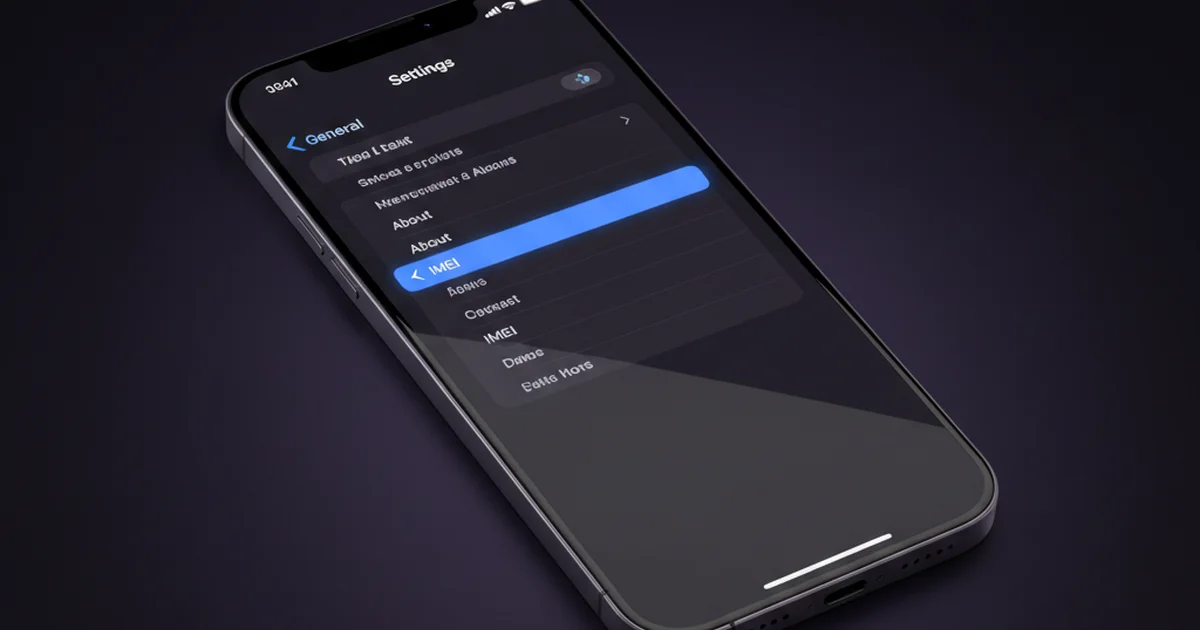
Table of Contents
- Method 1: Dial *#06# (Fastest)
- Method 2: iPhone Settings
- Method 3: SIM Tray (iPhone 12 and Earlier)
- Method 4: Apple ID / iCloud
- Method 5: Original Box or iTunes/Finder
- IMEI Locations by iPhone Model
- What to Do With Your IMEI
- Dual SIM iPhones — IMEI1 and IMEI2
- Frequently Asked Questions
Method 1: Dial *#06# (Fastest)
Open the Phone app on your iPhone and dial *#06#. Do not press call — the IMEI screen appears automatically as soon as you finish typing the code. On a dual-SIM iPhone, both IMEI1 and IMEI2 are displayed simultaneously, clearly labelled.
This method works on every iPhone model that has cellular capability — from the original iPhone all the way through iPhone 16 Pro Max. No settings navigation, no menus, no Apple ID required. It is the quickest way to get the number in front of you.
Method 2: iPhone Settings
If you prefer navigating through Settings:
- Open Settings
- Tap General
- Tap About
- Scroll down to IMEI
On dual-SIM iPhones you will see two entries: IMEI (for the physical SIM or primary eSIM slot) and IMEI2 (for the secondary SIM). Tap and hold on either IMEI number to copy it to clipboard — useful for pasting directly into a police report form or carrier portal.
Method 3: SIM Tray (iPhone 12 and Earlier)
On iPhone models up to and including iPhone 12, Apple laser-engraved the IMEI on the SIM card tray. To find it:
- Turn off your iPhone
- Use the SIM eject tool (or a paperclip) to open the SIM tray
- Look at the tray itself — the IMEI is engraved in tiny text along one side
This method is useful when the phone is powered off or has a damaged screen. From iPhone 13 onwards, Apple moved to eSIM as the primary SIM option in many markets, and the physical SIM tray on models sold in the USA was removed entirely from iPhone 14 onwards (US models). Non-US iPhone 14 and 15 models still have a physical SIM tray but the IMEI may or may not be engraved depending on the variant.
Method 4: Apple ID / iCloud
This is the most useful method when the phone is lost or stolen. If your iPhone was signed into your Apple ID before it went missing:
- On any browser, go to appleid.apple.com
- Sign in with your Apple ID and password
- Under Devices, select your iPhone
- The IMEI is listed in the device details
Apple stores the IMEI of every device signed into your Apple ID. This record persists even after the device is erased or signed out — making it your most reliable fallback if you did not write the IMEI down beforehand. You can also access this information through the Find My app on another Apple device by tapping on the missing iPhone. How to block a stolen iPhone using its IMEI.
Method 5: Original Box or iTunes/Finder
Original Box
The IMEI is printed on the barcode sticker on the back of every iPhone retail box. This is your best offline backup — the box does not require power, a password, or a network connection. Keep the box somewhere safe, or take a photo of the sticker and store it in your cloud photos.
iTunes (Windows) or Finder (Mac)
Connect your iPhone to a computer via USB and open iTunes (Windows) or Finder (Mac). Click on your device in the left sidebar. Click the model information text under the iPhone’s name — it cycles through Serial Number, IMEI, and MEID with each click. Click until IMEI is displayed, then right-click to copy it.
IMEI Locations by iPhone Model
| iPhone Model | *#06# | Settings | SIM Tray Engraved | Dual SIM |
|---|---|---|---|---|
| iPhone 16 series | ✅ | ✅ | ❌ (US: eSIM only) | ✅ (IMEI1 + IMEI2) |
| iPhone 15 series | ✅ | ✅ | ❌ (US: eSIM only) | ✅ (IMEI1 + IMEI2) |
| iPhone 14 series | ✅ | ✅ | ❌ (US: eSIM only) | ✅ (IMEI1 + IMEI2) |
| iPhone 13 series | ✅ | ✅ | Varies by region | ✅ (IMEI1 + IMEI2) |
| iPhone 12 series | ✅ | ✅ | ✅ | ✅ (IMEI1 + IMEI2) |
| iPhone 11 series | ✅ | ✅ | ✅ | ✅ (IMEI1 + IMEI2) |
| iPhone XS / XS Max | ✅ | ✅ | ✅ | ✅ (IMEI1 + IMEI2) |
| iPhone X and earlier | ✅ | ✅ | ✅ | ❌ Single SIM only |
What to Do With Your IMEI
Save It Before You Need It
The single most useful thing you can do right now is write down your IMEI and store it somewhere separate from your phone. A note in your email drafts, a photo of the box, or a line in your password manager all work. If your iPhone is stolen, you will need this number immediately to file a police report and request a carrier blacklist — and having it ready saves hours.
Check Blacklist Status
When buying a used iPhone, always run an IMEI check before paying. A clean IMEI means the phone is not reported stolen, not carrier-locked to a different network, and has no outstanding finance agreement. This check takes under a minute and can save you from buying a phone that will not work on your carrier. Full guide to checking IMEI before buying a used phone.
Report a Stolen iPhone
If your iPhone is stolen: immediately use Find My to mark it as lost, then file a police report, then contact your carrier with the IMEI. Your carrier will add the IMEI to the national blacklist. In countries with a centralised registry (India, Pakistan, South Africa), you can also submit directly to the national portal.
Dual SIM iPhones — IMEI1 and IMEI2
From iPhone XS onwards, Apple introduced dual SIM support. Every dual-SIM capable iPhone has two IMEIs. In most markets this is one physical SIM (IMEI1) plus one eSIM (IMEI2). In the USA from iPhone 14 onwards, both SIMs are eSIM-based — no physical SIM tray — but the phone still has IMEI1 and IMEI2.
Both IMEIs are displayed when you dial *#06# or go to Settings › General › About. Both should be saved and both should be reported if the phone is stolen — a thief using only the secondary eSIM profile would connect via IMEI2, which needs to be on the blacklist to block that connection.
How do I find my IMEI on iPhone 16?
Dial *#06# in the Phone app — both IMEI1 and IMEI2 appear instantly. Or go to Settings, then General, then About, and scroll to IMEI. The IMEI is also printed on the original retail box sticker and available via appleid.apple.com under your device list.
Where is the IMEI on iPhone 14?
On iPhone 14 (US models), there is no physical SIM tray — the phone is eSIM only. Find the IMEI by dialling *#06#, through Settings then General then About, via appleid.apple.com, or on the original retail box. Non-US iPhone 14 models have a physical SIM tray but the IMEI may not be engraved on it.
Can I find my iPhone IMEI if the phone is lost?
Yes. Log into appleid.apple.com with your Apple ID and select your iPhone from the Devices section — the IMEI is listed in the device details. You can also find it on the original retail box, through iTunes or Finder if you previously synced the phone, or your carrier can retrieve it from your account records.
Do iPhones have two IMEI numbers?
Yes — from iPhone XS onwards. Dual-SIM iPhones have IMEI1 (primary SIM slot) and IMEI2 (secondary SIM or eSIM). Both are shown when you dial *#06# or check Settings then General then About. Save both in case you ever need to report the phone stolen.
Is the IMEI the same as the serial number on iPhone?
No. The IMEI is a network identifier used by carriers for device authentication and blacklisting. The serial number is a manufacturer identifier used by Apple for warranty and support. Both appear in Settings then General then About, but they are different numbers used by different systems.
Comment (1) on "How to Find Your IMEI on iPhone 16, 15, 14 & Older Models (2026)"
Comments are closed.