
Finding your IMEI on a Samsung Galaxy phone is fast — there are five different ways to do it, and at least two of them work even if your screen is broken or the phone is locked. This guide covers every method for the Galaxy S25, S24, and all other Galaxy models, plus what to do with your IMEI once you have it.
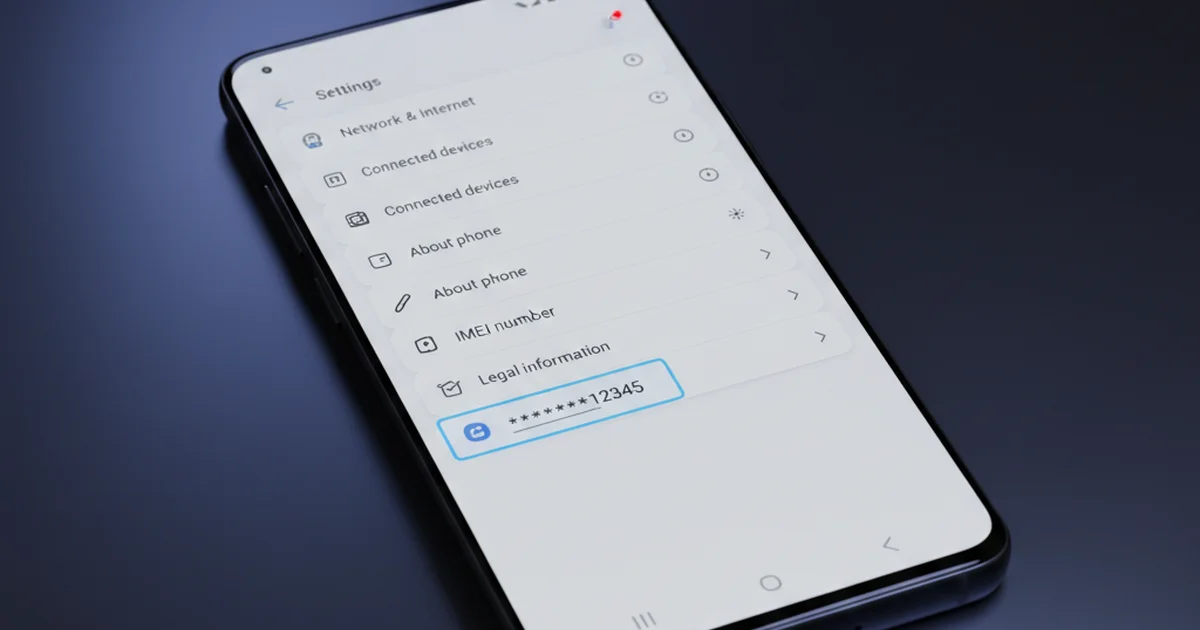
Table of Contents
- Method 1: Dial *#06# (Fastest)
- Method 2: Samsung Settings App
- Method 3: Original Box
- Method 4: Samsung Account
- Method 5: Physical SIM Tray or Back Cover
- Finding IMEI on Specific Galaxy Models
- What to Do With Your IMEI
- IMEI1 vs IMEI2 on Dual-SIM Galaxy Phones
- Frequently Asked Questions
Method 1: Dial *#06# (Fastest)
The fastest way to find the IMEI on any Samsung Galaxy phone is to open the Phone app and dial *#06#. You do not need to press call — the IMEI screen appears automatically as soon as you finish typing the code.
On dual-SIM Galaxy phones (which is most Galaxy S and A series models), you will see both IMEI1 and IMEI2 displayed simultaneously. Each corresponds to one SIM slot. This method works on every Samsung Galaxy model from the S series, A series, M series, and older models — no settings navigation required.
Method 2: Samsung Settings App
If you prefer the settings route, here is the path on Samsung One UI (the interface used on all recent Galaxy phones):
- Open Settings
- Scroll down to About Phone
- Tap Status Information
- Tap IMEI Information
You will see IMEI1 and IMEI2 listed here. On older Samsung phones running an earlier version of One UI or TouchWiz, the path may be Settings › About Phone › IMEI without the Status Information sub-menu. The IMEI is always in the About Phone section regardless of the software version.
Method 3: Original Box
Every Samsung Galaxy retail box has a white barcode sticker on the back or side panel that lists both IMEI numbers. This is the most reliable method when the phone is powered off, locked, or has a broken screen.
The sticker typically shows: the model number, serial number, IMEI1, and IMEI2 (for dual-SIM models). Samsung also prints a QR code on the sticker that, when scanned, returns the device specifications. Keep your original box — it is your best backup if the phone is ever stolen.
Method 4: Samsung Account
If your Galaxy phone was signed into a Samsung account before it was lost or stolen, you can retrieve the IMEI online:
- Go to findmymobile.samsung.com
- Sign in with your Samsung account credentials
- Select your device from the list
- The device details panel shows the IMEI
This method is particularly useful after a theft, when you need the IMEI to file a police report or contact your carrier for a blacklist request. Samsung’s Find My Mobile service is free and does not require prior setup beyond being signed in to your Samsung account on the device. How to block a stolen phone using IMEI.
Method 5: Physical SIM Tray or Back Cover
On some older Samsung Galaxy models (particularly Galaxy J and A series from 2016–2019), the IMEI is printed on a label inside the SIM tray slot or under the removable back cover. Newer Galaxy phones with sealed bodies (S20 onwards) do not have an accessible label — use one of the other methods instead.
Finding IMEI on Specific Galaxy Models
| Model | Best Method | SIM Config |
|---|---|---|
| Galaxy S25 / S25+/ S25 Ultra | *#06# or Settings › About › Status › IMEI | Dual SIM (2 IMEIs) |
| Galaxy S24 / S24+ / S24 Ultra | *#06# or Settings › About › Status › IMEI | Dual SIM (2 IMEIs) |
| Galaxy S23 series | *#06# or Settings › About › Status › IMEI | Dual SIM (2 IMEIs) |
| Galaxy A55 / A35 / A15 | *#06# or Settings › About Phone › IMEI | Dual SIM (2 IMEIs) |
| Galaxy M series | *#06# or Settings › About Phone | Dual SIM (2 IMEIs) |
| Galaxy Z Fold 6 / Flip 6 | *#06# or Settings › About › Status › IMEI | Dual SIM (2 IMEIs) |
| Galaxy Tab S9 (Wi-Fi) | Settings › About Tablet | No cellular — no IMEI |
| Galaxy Tab S9 (5G) | *#06# or Settings › About Tablet | Single SIM (1 IMEI) |
What to Do With Your IMEI
Save It Now — Before You Need It
Write both your IMEI1 and IMEI2 down somewhere secure — a notes app, email draft to yourself, or a photo of the box sticker saved to cloud storage. If your Galaxy phone is ever stolen, you will need the IMEI to file a police report and request a carrier blacklist. Without it, the process is significantly slower.
Check Blacklist Status
You can check whether your Galaxy’s IMEI is on any blacklist using official tools. This is especially important when buying a used Samsung phone — run the IMEI through your country’s checker before purchase. How to check IMEI online using official tools.
Report a Stolen Galaxy
If your Galaxy is stolen: file a police report, then contact your carrier with the IMEI and the police report number. Your carrier will submit the IMEI to the national blacklist. In India, you can also submit directly to the CEIR portal. In the UK, use the NMPR. Full stolen phone IMEI blocking guide.
IMEI1 vs IMEI2 on Dual-SIM Galaxy Phones
Most Samsung Galaxy phones sold globally are dual-SIM. This means they have two IMEI numbers — one per SIM slot. Both IMEIs are equally valid and should both be saved. If your phone is stolen, report both to your carrier so the thief cannot use either SIM slot.
IMEI1 corresponds to the primary SIM slot (SIM 1) and IMEI2 corresponds to the secondary SIM slot (SIM 2). Both share the same TAC code — confirming they belong to the same device model — but have different serial number segments making each globally unique.
How do I find my IMEI on a Samsung Galaxy phone?
The fastest method is to dial *#06# in the Phone app — both IMEI1 and IMEI2 appear instantly. You can also go to Settings, then About Phone, then Status Information, then IMEI Information. Both numbers are also printed on the original retail box sticker.
Does Samsung Galaxy S25 have two IMEI numbers?
Yes. The Galaxy S25, S25+, and S25 Ultra are all dual-SIM phones and have two IMEIs — IMEI1 for the primary SIM slot and IMEI2 for the secondary SIM slot. Both are displayed when you dial *#06# or check Settings.
How can I find my Samsung IMEI if my screen is broken?
Check the original retail box — the IMEI sticker is on the back or side panel. If you do not have the box, log into findmymobile.samsung.com with your Samsung account to retrieve the IMEI from your device profile.
What is the IMEI used for on a Samsung phone?
The IMEI identifies your Samsung device on carrier networks, enables blacklisting if stolen, and is required for carrier unlocking. It is also used to verify the device is genuine and not blacklisted when buying a used phone.
Can I find my Samsung IMEI without the phone?
Yes — log into findmymobile.samsung.com with your Samsung account. If the phone was registered, its IMEI appears in the device details. Your carrier can also retrieve it from your account records if you contact customer support.