
How to Find IMEI on Any Android Phone: Complete Guide
Your Android phone’s IMEI number is one of the most important identifiers you need to know. Whether you’re checking if your phone is stolen, unlocking it, or registering it with your carrier, finding this 15-digit code is essential. In this guide, we’ll walk you through 5 proven methods to locate your IMEI on any Android device in 2026.
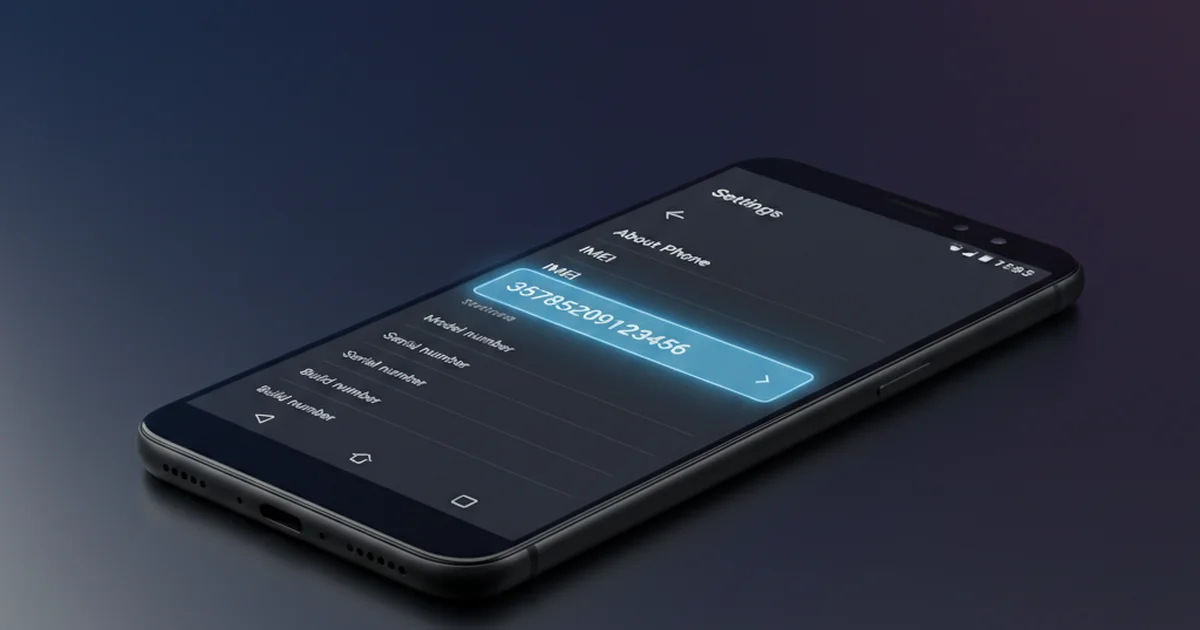
What is an IMEI Number and Why Do You Need It?
An IMEI (International Mobile Equipment Identity) number is a unique 15-digit identifier assigned to every mobile phone. Think of it as your phone’s fingerprint—no two phones have the same IMEI. Your carrier, law enforcement, and mobile networks use this number to:
- Verify if your phone has been reported stolen or blacklisted
- Track or block a lost device
- Unlock your phone when switching carriers
- Register your device with government bodies (like India’s CEIR or the US CTIA system)
- Check warranty status and device history
- Prevent phone cloning and SIM swaps
If you’ve recently bought a used phone or suspect your device might be blacklisted, knowing your IMEI is the first step toward verification.
Table of Contents
- Method 1: Using Settings App (Easiest)
- Method 2: Dialer Code *#06#
- Method 3: Device Info App
- Method 4: SIM Card Tray
- Method 5: Original Packaging & Documents
- FAQ
Method 1: Find IMEI in Android Settings (Works on All Devices)
This is the most straightforward method and works on every Android phone from Samsung to Google Pixel to OnePlus. Follow these steps:
Step-by-Step Instructions
- Open Settings on your Android phone. Look for the gear icon on your home screen or app drawer.
- Scroll down and tap “About Phone” (exact wording varies: some devices say “Phone Information” or “Device Information”).
- Look for “IMEI” or “IMEI 1” and “IMEI 2” (if your phone has two SIM slots). The number will be 15 digits.
- Take a screenshot or write down the number for safekeeping.
Note: If your phone has two SIM card slots, you’ll see IMEI 1 and IMEI 2. Each SIM slot has its own IMEI number. Make sure to note both if needed.
Device-Specific Paths
While the basic path is the same, some manufacturers name their menus slightly differently:
| Device Brand | Exact Menu Path |
| Samsung Galaxy | Settings → About Phone → Status Information |
| Google Pixel | Settings → About Phone |
| OnePlus | Settings → About Phone → Device Details |
| Xiaomi / Redmi | Settings → About Phone → Device Information |
| Motorola | Settings → About Phone → Status Information |
| OPPO / Vivo | Settings → About Phone → Device Details |
Method 2: Using the Dialer Code *#06# (Fastest)
This is the fastest method if you just need your IMEI quickly. It works on virtually every mobile phone worldwide—Android, iPhone, even old flip phones.
How to Use the Dialer Code
- Open the Phone/Dialer app (the one you use to make calls).
- In the number pad, type: *#06# (exactly as shown, including the asterisks and hash).
- Your IMEI(s) will appear instantly on your screen. You don’t need to press the call button.
- Screenshot or note down the 15-digit number.
This code is a universal IMEI checker supported by every Android phone. There’s nothing to install, no apps needed, and it’s completely safe.
Method 3: Using Device Info Apps from Google Play
If the first two methods don’t work (very rare), you can download a free device information app from Google Play Store to find your IMEI and other hardware details.
Recommended Device Info Apps
- Device ID (by Zazstech) – Shows IMEI, IMSI, device name, Android version, and more.
- Device Information HW (by Shoaib Akhtar) – Displays comprehensive hardware and software info.
- CPU Z – Not just CPU info; also shows IMEI and device identifiers.
- Droid Hardware Info – Includes detailed phone specifications and IMEI.
Simply download any of these apps, open it, and look for the IMEI field. All are free and lightweight.
Method 4: Check the SIM Card Tray (Physical Method)
Some older Android phones and certain models print the IMEI directly on the SIM card tray. This is a quick physical check if digital methods fail.
How to Check the SIM Tray
- Power off your phone completely.
- Locate the SIM card tray slot (usually on the side of the phone).
- Use the SIM ejector tool (often included with your phone box) or a thin paperclip to gently push the small hole and eject the tray.
- Look on the tray itself—some phones print IMEI, IMSI, or device serial numbers here.
- If visible, note down the number.
Warning: Not all phones print IMEI on the SIM tray. This method is supplementary; use the Settings or Dialer Code method for guaranteed results.
Method 5: Check Original Box and Documents
If you just purchased your Android phone, your IMEI might already be documented in the original packaging.
Where to Look
- Inside the phone box – Check the instruction manual or spec sheet.
- Carrier documentation – If you purchased from a carrier (AT&T, Verizon, T-Mobile, etc.), your receipt or activation papers may list the IMEI.
- Warranty card or certificate – Some phones include a warranty card with device identifiers.
- Online account – If you registered your phone with the manufacturer (Samsung, Google, etc.), log into your account and check registered devices.
What to Do After You Find Your IMEI: 3 Important Next Steps
Once you have your IMEI, here’s what you should do:
1. Check If Your Phone is Blacklisted
Use our trusted IMEI lookup tools to verify your phone’s status instantly. This shows if it’s been reported stolen, is under contract, or has any flags.
2. Register with Your Carrier
Some carriers (especially in India with CEIR, or in the USA) require IMEI registration for unlocking or coverage activation. Save your IMEI and register it with your provider’s website.
3. Save It in a Safe Place
Write down your IMEI in a secure location (password manager, cloud storage) separate from your phone. If your device is lost or stolen, you’ll need this number to report it to law enforcement and your carrier.
Common Issues: Troubleshooting When You Can’t Find IMEI
Problem: The Settings menu shows no IMEI.
Solution: Try the dialer code method (*#06#). It’s more reliable if Settings is corrupted or hidden by a custom ROM.
Problem: The dialer code shows two IMEI numbers and I don’t know which one is mine.
Solution: IMEI 1 is your primary SIM slot. IMEI 2 is your secondary slot. If you only use one SIM, your active number is IMEI 1. If unsure, contact your carrier with both numbers.
Problem: IMEI number appears different in Settings vs. Dialer code.
Solution: This is extremely rare but can happen on cloned phones or devices with firmware issues. If numbers don’t match, your device may be counterfeit. Use official lookup tools to verify authenticity.
Problem: I bought a used phone and want to verify it’s genuine.
Solution: Read our complete guide on how to check IMEI before buying used phones. This covers verification with your country’s IMEI registry, checking blacklist status, and spotting scams.
IMEI vs MEID vs Serial Number: What’s the Difference?
You might see other numbers on your phone. Here’s how they differ:
| Identifier | Devices | Format | Purpose |
| IMEI | Most Android, iPhones | 15 digits | Mobile network tracking & verification |
| MEID | Older CDMA phones (Verizon, Sprint) | 14 hexadecimal | Legacy network identifier |
| Serial Number | All phones | Alphanumeric (8-15 chars) | Manufacturer warranty & service |
For modern Android phones in 2026, IMEI is what you need. The others are outdated or supplementary.
Frequently Asked Questions
Q: Is it safe to share my IMEI number?
A: Generally, yes—but only with trusted sources like your carrier, law enforcement, or official IMEI lookup services. Never share it publicly on social media or with unknown third parties. While an IMEI alone can’t unlock your phone, it combined with other data could help scammers. Use your judgment.
Q: Can someone clone my IMEI?
A: Yes, IMEI cloning is possible but requires technical skill and special equipment. This is why checking your IMEI against official registries is important—if yours matches multiple devices, you likely have a counterfeit phone. Read our guide on IMEI cloning to learn more.
Q: Does every Android phone have an IMEI?
A: Nearly all Android phones connected to cellular networks have an IMEI. However, WiFi-only tablets don’t have an IMEI because they don’t connect to carriers. Read our article on whether tablets have IMEIs.
Q: What if I lost my phone? How do I find its IMEI?
A: Check your carrier’s account online, your phone box, or your carrier bill—they typically list device IMEI. You can also check your cloud backup (Google Account > Security) or previous screenshots. Once you have it, use IMEI tracking tools to report it stolen.
Q: Can I change my IMEI?
A: On standard Android, no—IMEI is hardcoded in your phone’s firmware by the manufacturer. Attempting to change it is illegal in most countries and will brick your phone. Some rooted/custom ROM devices might allow it, but this violates carrier terms of service and laws like the CFAA in the US.
Q: Why does my IMEI start with 35 or 86?
A: The first two digits of your IMEI are the TAC (Type Allocation Code) and identify the device manufacturer. For example, 35 indicates Apple, 86 often indicates Xiaomi, and 86/89 are common for various Asian manufacturers. Your TAC tells you nothing about the device’s country of origin—it’s purely a manufacturer identifier.
Q: Is there an official government database to check IMEI in India?
A: Yes—the CEIR (Central Equipment Identity Register) in India allows you to check if a phone is blacklisted. Visit our CEIR guide for step-by-step instructions.
Q: Which country has the best IMEI lookup system?
A: The USA (CTIA system), India (CEIR), and UK (Ofcom) have robust government-backed IMEI verification systems. See our USA IMEI guide and country-specific pages for official resources.
Conclusion: Your IMEI is a Lifeline for Your Phone
Finding your IMEI on an Android phone is quick and simple—use the Settings menu, dialer code, or a device info app. In under 30 seconds, you’ll have this essential 15-digit number that unlocks a world of phone management, security, and verification.
Next step: Write down or screenshot your IMEI right now, then check if your phone is blacklisted using our trusted IMEI lookup tools. If you’re buying a used phone, verify the IMEI matches the device using your country’s official system.
Your IMEI is like your phone’s ID card—keep it safe and you’ll never be caught off guard.